Finder is the default file manager on every Mac. It works fine for basic tasks like opening folders and copying files. But the moment you need dual panes, remote server access, or batch operations, you hit a wall.
If you’ve been searching for a better file manager for Mac, you’re in the right place. Here are 5 Finder alternatives that go far beyond what Finder offers.
Quick picks at a glance
Why look beyond Finder?
Finder hasn’t changed much in years. It handles basic file browsing, but it lacks features that power users and professionals rely on daily.
Here’s what Finder can’t do:
- No dual or multi-pane view. You can’t view two folders side-by-side without opening separate windows
- No built-in FTP/SFTP. Connecting to remote servers requires third-party apps
- Weak search. Finder search is slow, cluttered, and hard to filter precisely
- No batch rename power. The built-in rename tool is limited compared to dedicated file managers
- No archive browsing. You can’t peek inside ZIP or RAR files without extracting them
- No integrated terminal. You have to switch to Terminal.app for command-line operations
- No workspaces. You can’t save a layout of folders and restore it later
If any of these frustrations sound familiar, a Mac Finder replacement might save you hours every week.
1. QSpace Pro: Best multi-pane file manager
Best for: Power users who juggle multiple folders and projects simultaneously
Price: $13.99 (one-time purchase)
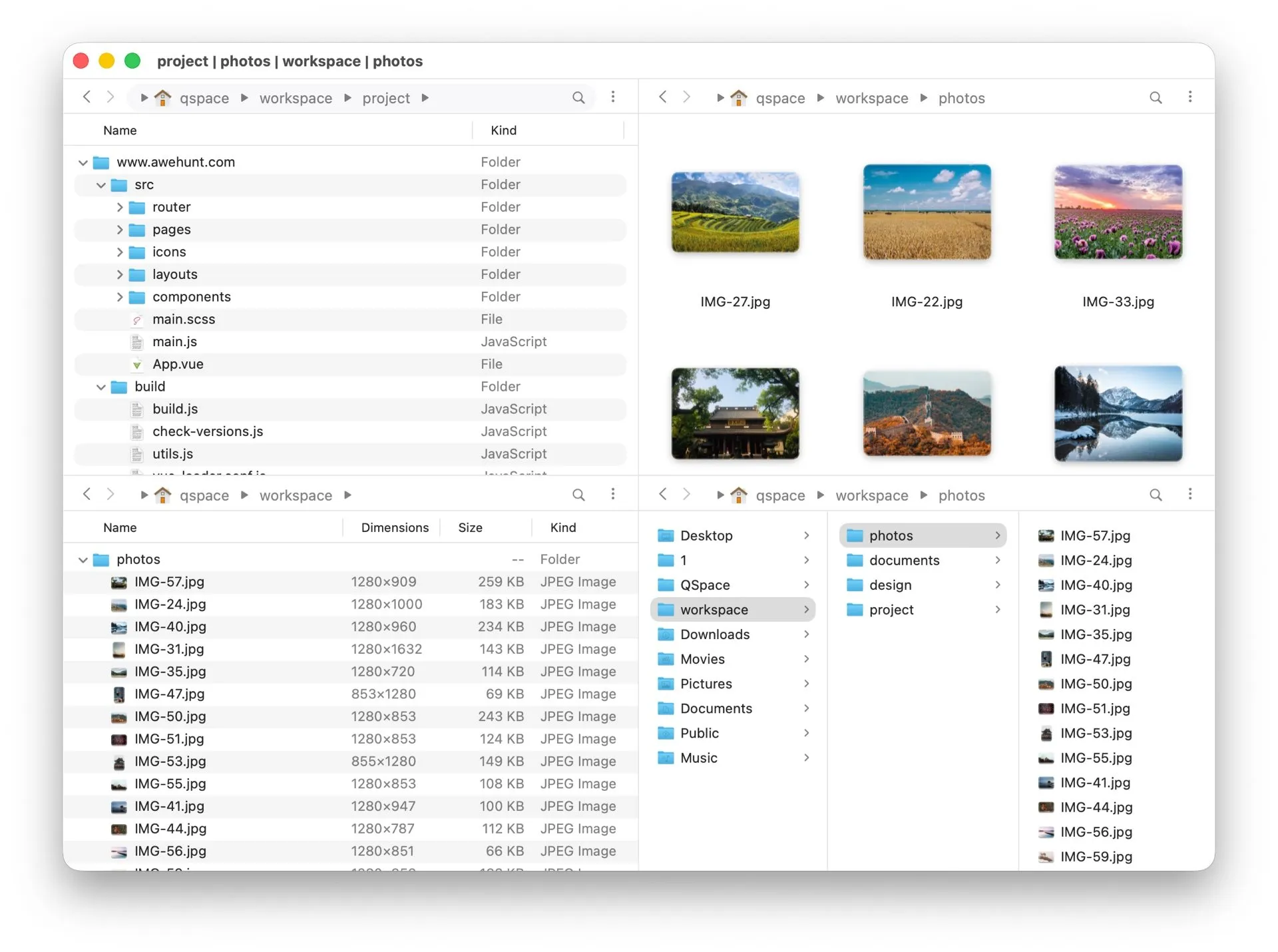
QSpace Pro is the most flexible dual pane file manager for Mac. While most file managers give you two panes, QSpace Pro offers 12 built-in layout presets with support for multiple panes in a single window. You can arrange them in grids, tabs, or custom layouts.
Why we recommend it
- 12 layout presets with multiple panes in a single window. Arrange files across multiple projects without switching windows
- Workspace management. Save and restore entire multi-pane layouts with one click
- Deep customization. Configure toolbar, shortcuts, file colors, and display options to fit your workflow
Key features
- Multi-pane layouts: Choose from 12 layout presets or create custom arrangements with multiple panes. Each pane is independent with its own path, view mode, and sort order
- Workspaces: Save your current layout (all pane paths, positions, and settings) as a workspace. Switch between project setups instantly
- Built-in previews: Preview images, videos, PDFs, code files, and markdown without leaving the app
- Archive support: Browse and extract ZIP, RAR, 7z, and TAR files directly
- Cloud integration: Connect to FTP, SFTP, WebDAV, and cloud services like Google Drive and Dropbox
- Batch operations: Rename, move, and copy files across panes with drag-and-drop or keyboard shortcuts
- Custom actions: Create shell script actions that run on selected files
Best for
Developers, designers, and anyone managing multiple projects who want everything visible at once without juggling Finder windows.
Potential drawbacks
- The sheer number of options can feel overwhelming at first
- Requires some setup time to configure your ideal workspace
Verdict: QSpace Pro is the best file manager for Mac if you need multi-pane power. The workspace system alone makes it worth the price.
Website: QSpace Pro
2. Bloom: Best modern Finder replacement
Best for: Users who want a polished, modern file manager that feels native to macOS
Price: $16 (one-time purchase)
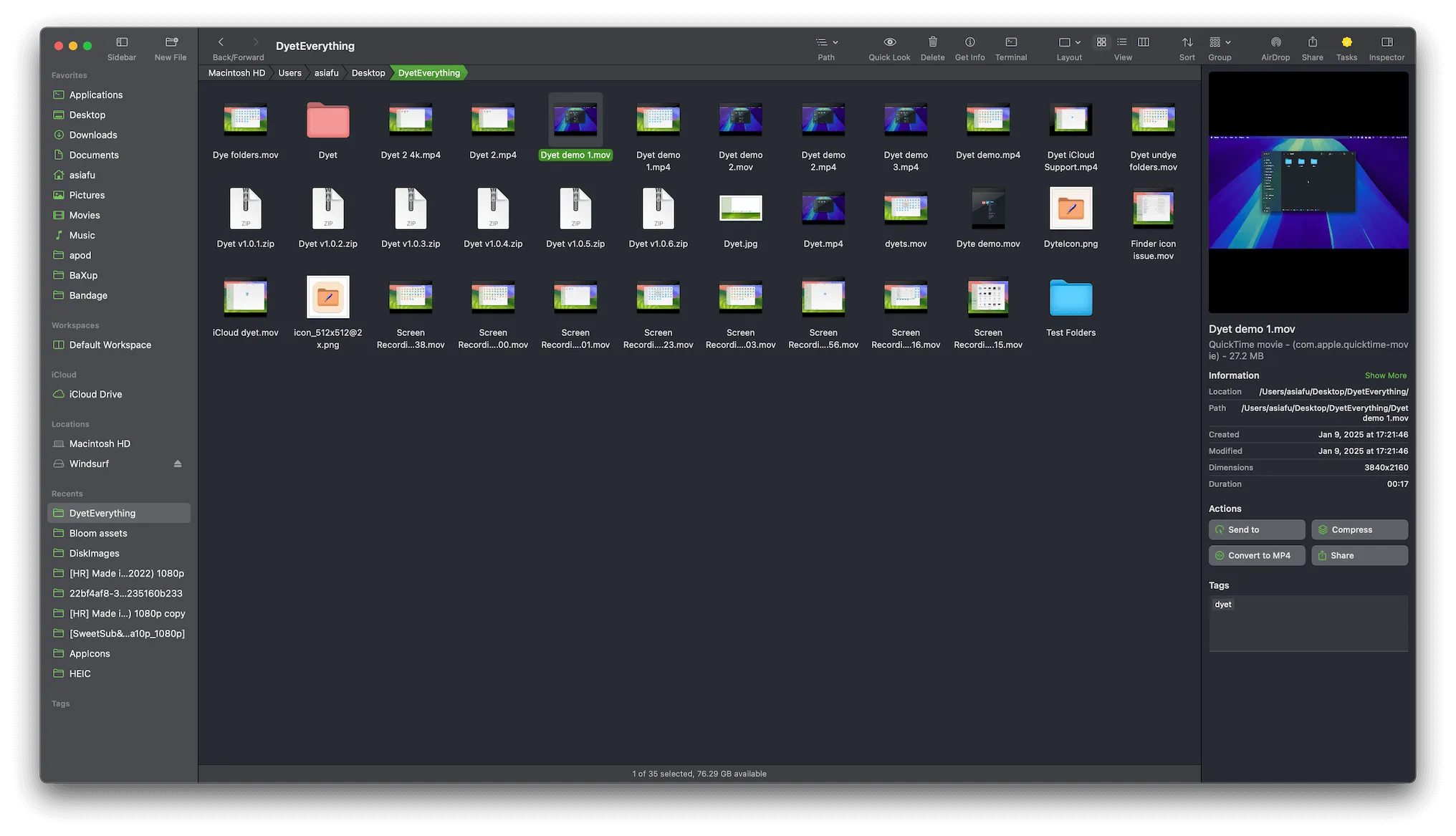
Bloom is what Finder should have been. It keeps the familiar macOS look and feel but adds the features Apple left out: multi-pane layouts, saved workspaces, and a clever “portal window” for quick file access.
Why we recommend it
- Native macOS design. Looks and feels like it belongs on your Mac, unlike many file managers with custom UIs
- Portal window. A floating mini-window for quick drag-and-drop access to any folder
- Customizable color themes. Style the entire interface with your favorite color for a personalized look
Key features
- Multi-pane layouts: View two or more folders side by side with flexible split arrangements
- Saved workspaces: Save your folder layout and switch between them. Great for separating work and personal files
- Portal window: A small, always-accessible window that shows a folder’s contents. Drag files in or out without navigating away from your current location
- Quick Look integration: Preview files with spacebar, just like in Finder
- Tabs: Open multiple folders in tabs within each pane
- Batch rename: Rename multiple files with regex patterns, counters, and find-and-replace
- Color themes: Customize the interface with your preferred color scheme
Best for
Users who like Finder’s simplicity but want dual panes, workspaces, and better organization. Bloom doesn’t try to reinvent the wheel. It just makes it better.
Potential drawbacks
- Fewer advanced features compared to QSpace Pro or ForkLift
- No built-in terminal
- Relatively new app, so some niche features may still be in development
Verdict: Bloom strikes the best balance between simplicity and power. If you want a Finder replacement that doesn’t require a learning curve, this is it.
Website: Bloom
Just need better file search?
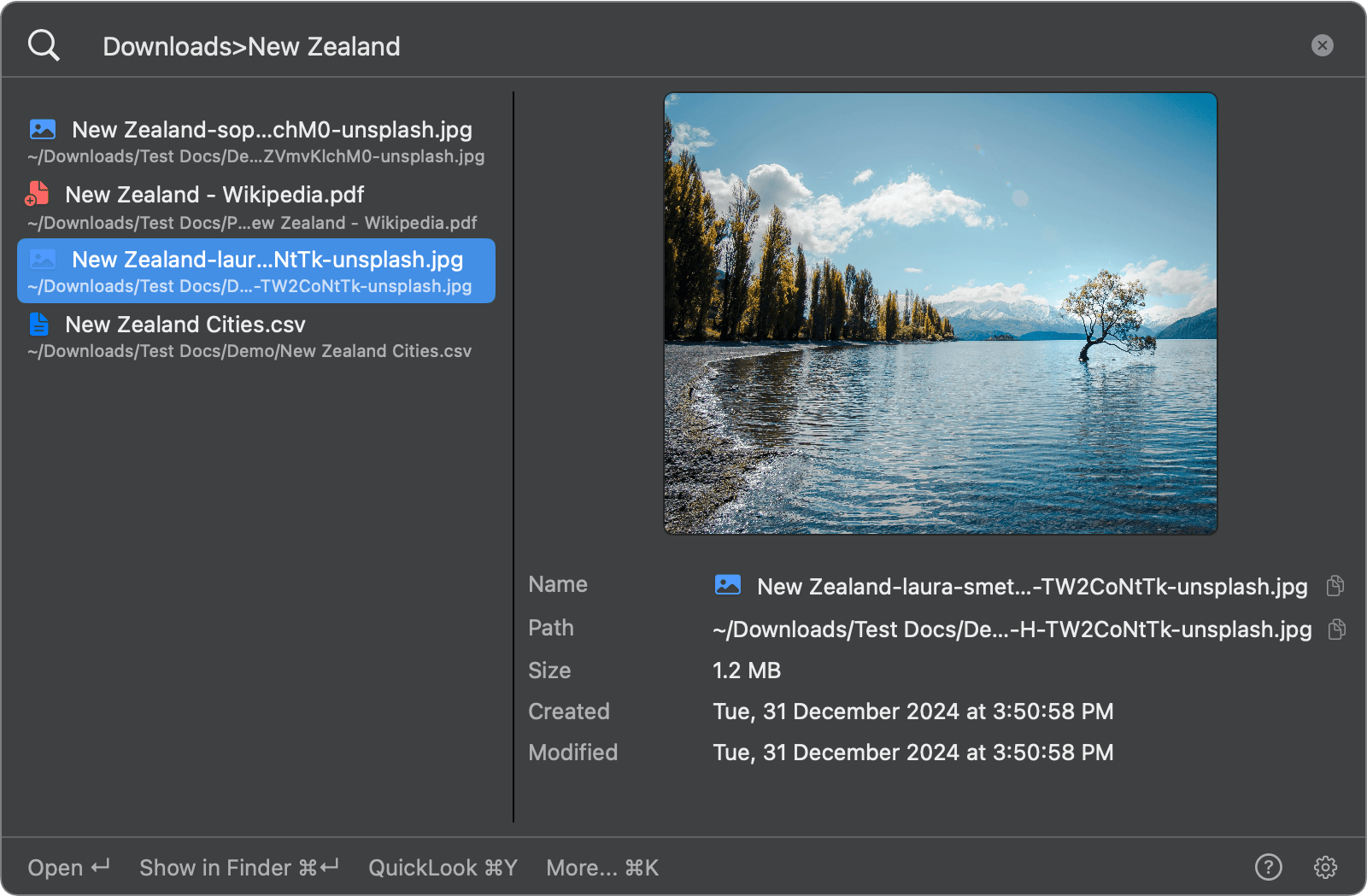
If your biggest frustration with Finder is finding files, you don't need a full replacement. FileMinutes lets you search inside specific folders, filter by file type, and browse your folders with arrow keys.
3. ForkLift 4: Best for remote file transfers
Best for: Developers and sysadmins who regularly transfer files to remote servers
Price: $19.95 (one-time purchase)
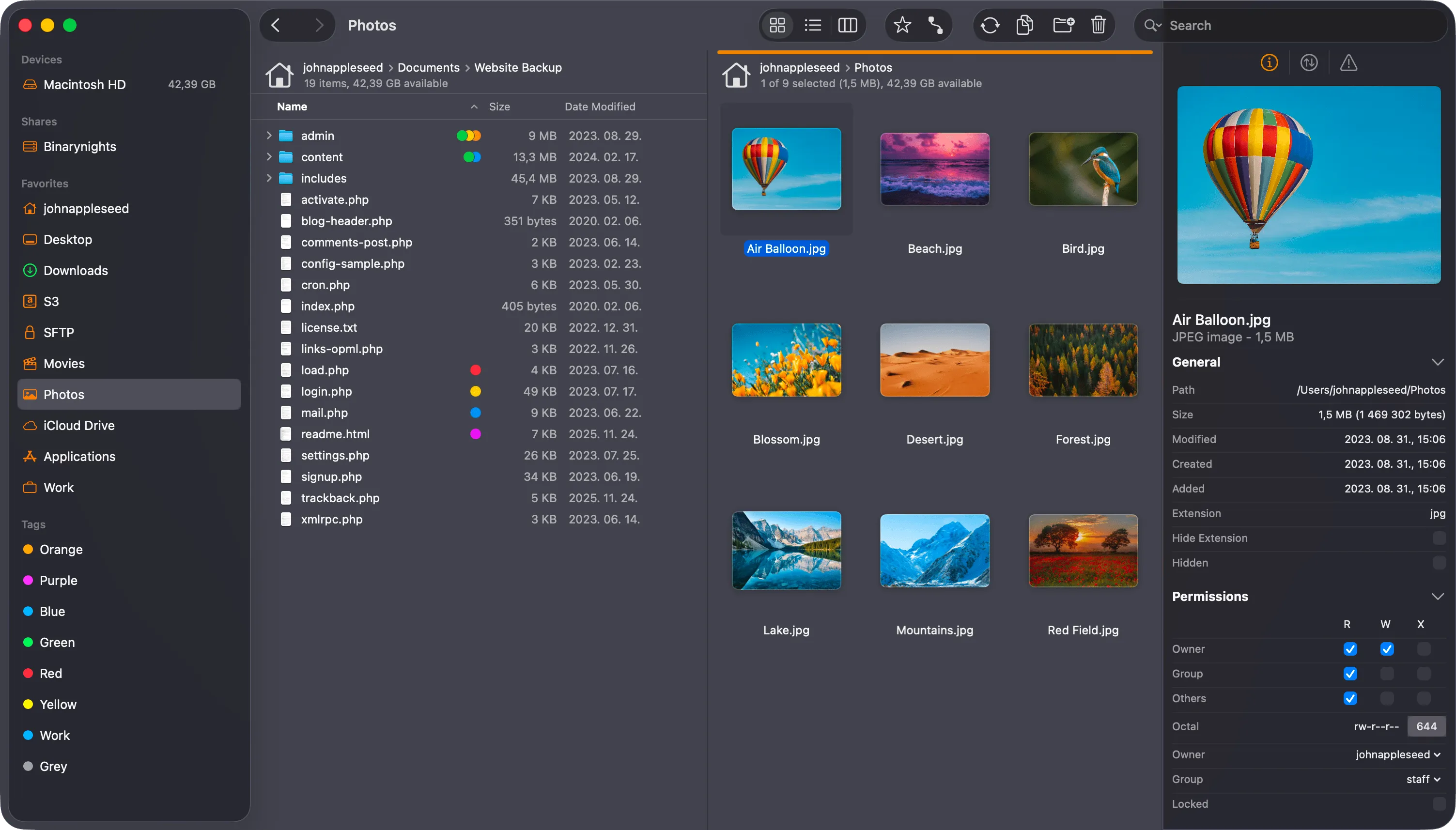
ForkLift started as an FTP client and evolved into a full file manager. Its remote file handling is best-in-class. If you work with SFTP, FTP, Amazon S3, or cloud storage daily, ForkLift is the tool to get.
Why we recommend it
- Best-in-class remote connections. Connect to SFTP, FTP, WebDAV, Amazon S3, Google Drive, Backblaze B2, and more
- Folder sync. Synchronize local and remote folders with a visual diff
- Can replace Finder. Set ForkLift as your default file manager so it opens when you click folders
Key features
- Dual-pane interface: Side-by-side browsing with drag-and-drop between local and remote locations
- Remote connections: SFTP, FTP, WebDAV, SMB, NFS, Amazon S3, Google Drive, Rackspace, Backblaze B2, and more
- Folder sync: Compare and synchronize two folders (local or remote) with a visual preview of changes
- Multi-rename: Batch rename files using patterns, search-and-replace, or sequential numbering
- Archive handling: Create and extract ZIP, TAR, GZ, BZ2, and 7z archives
- App deleter: Uninstall apps completely by finding and removing associated files
- Dark mode: Full dark mode support with native macOS styling
- Disklet: Mount remote servers as local drives in Finder
Best for
Web developers, sysadmins, and anyone who regularly uploads files to servers or syncs folders between machines.
Potential drawbacks
- UI feels slightly dated compared to Bloom
- Cloud integration limited compared to dedicated cloud clients
- No workspace saving feature
Verdict: For remote file management, nothing beats ForkLift on macOS. The folder sync feature alone is worth the price if you manage remote servers.
Website: binarynights.com
4. Commander One: Best free Finder alternative
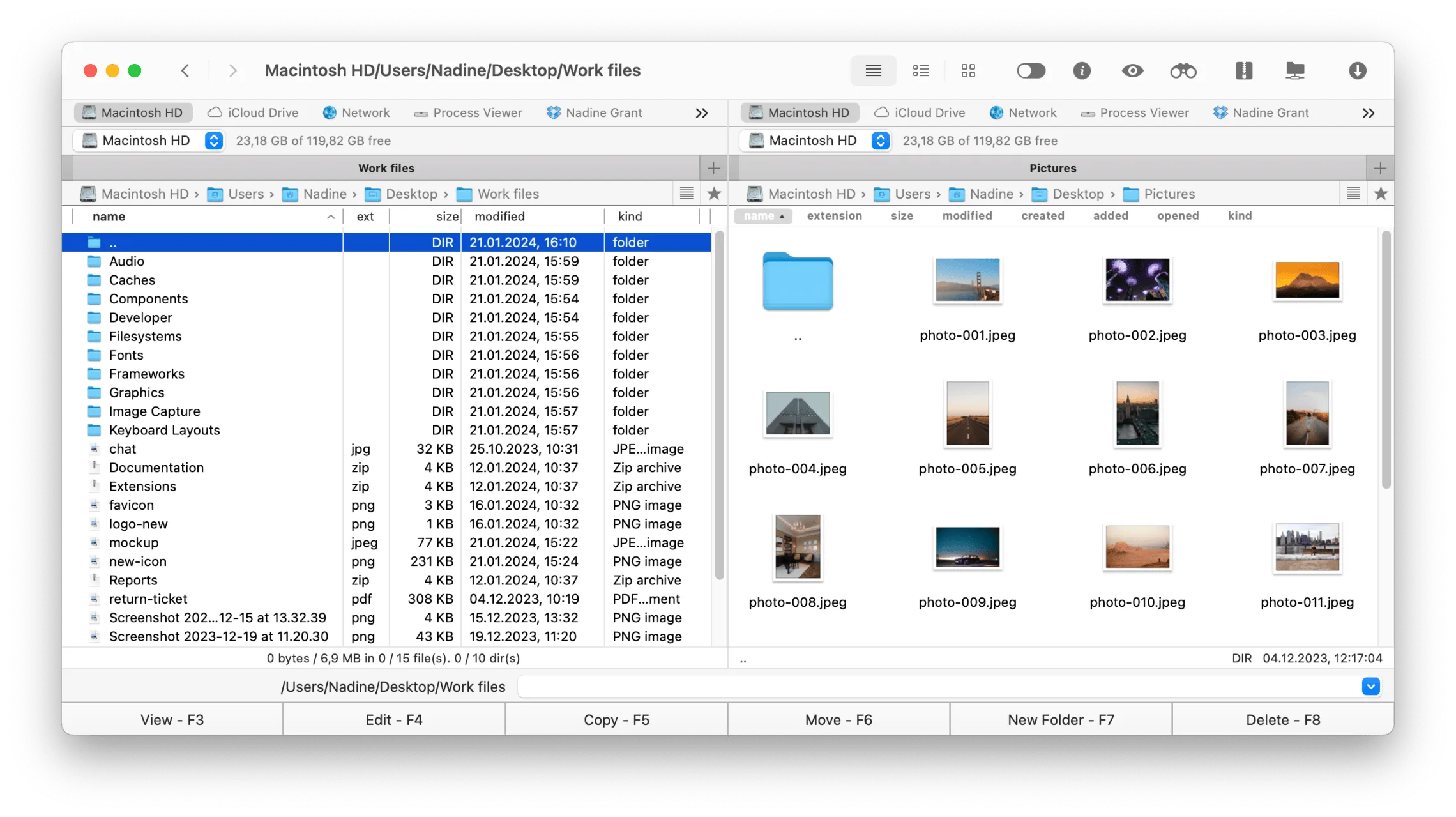
Best for: Users who want a capable dual-pane file manager without paying anything
Price: Free / $29.99 (Pro Pack, one-time)
Commander One is one of the few free file managers for Mac that actually delivers. The free version includes dual-pane browsing, unlimited tabs, and theme support. The Pro upgrade adds a built-in terminal, cloud mounting, and expanded archive handling.
Why we recommend it
- Generous free tier. Dual-pane browsing, unlimited tabs, themes, and file viewer at no cost
- Built-in terminal (Pro). Run shell commands directly inside the file manager
- Cloud mounting (Pro). Mount Google Drive, Dropbox, OneDrive, and more as local drives
Key features
- Dual-pane interface: Two panels with independent navigation, tabs, and view modes
- Built-in terminal (Pro): A command line at the bottom of the window for quick shell commands
- Cloud connections (Pro): Mount cloud storage as local drives, including Google Drive, Dropbox, OneDrive, Amazon S3, Backblaze B2, and more
- Archive support (Pro): Browse and extract ZIP, RAR, 7z, TBZ, TGZ archives without third-party tools
- File viewer: Built-in viewer for images, text, hex, and binary files
- Themes: Switch between light, dark, and custom color themes
- Hotkeys: Extensive keyboard shortcut support for all operations
- Queue operations: Queue file copy/move tasks to run sequentially
Best for
Budget-conscious users who want a solid dual pane file manager for Mac without spending money. The free tier covers most everyday needs.
Potential drawbacks
- Best features locked behind Pro purchase
- Interface can feel cluttered with many panels open
- Performance can slow with very large directories
- Cloud mounting requires the Pro Pack
Verdict: Commander One is the best free Finder alternative. The dual-pane layout with a built-in terminal is more than most free tools offer.
Website: commander-one.com
5. Marta: Best keyboard-driven file manager
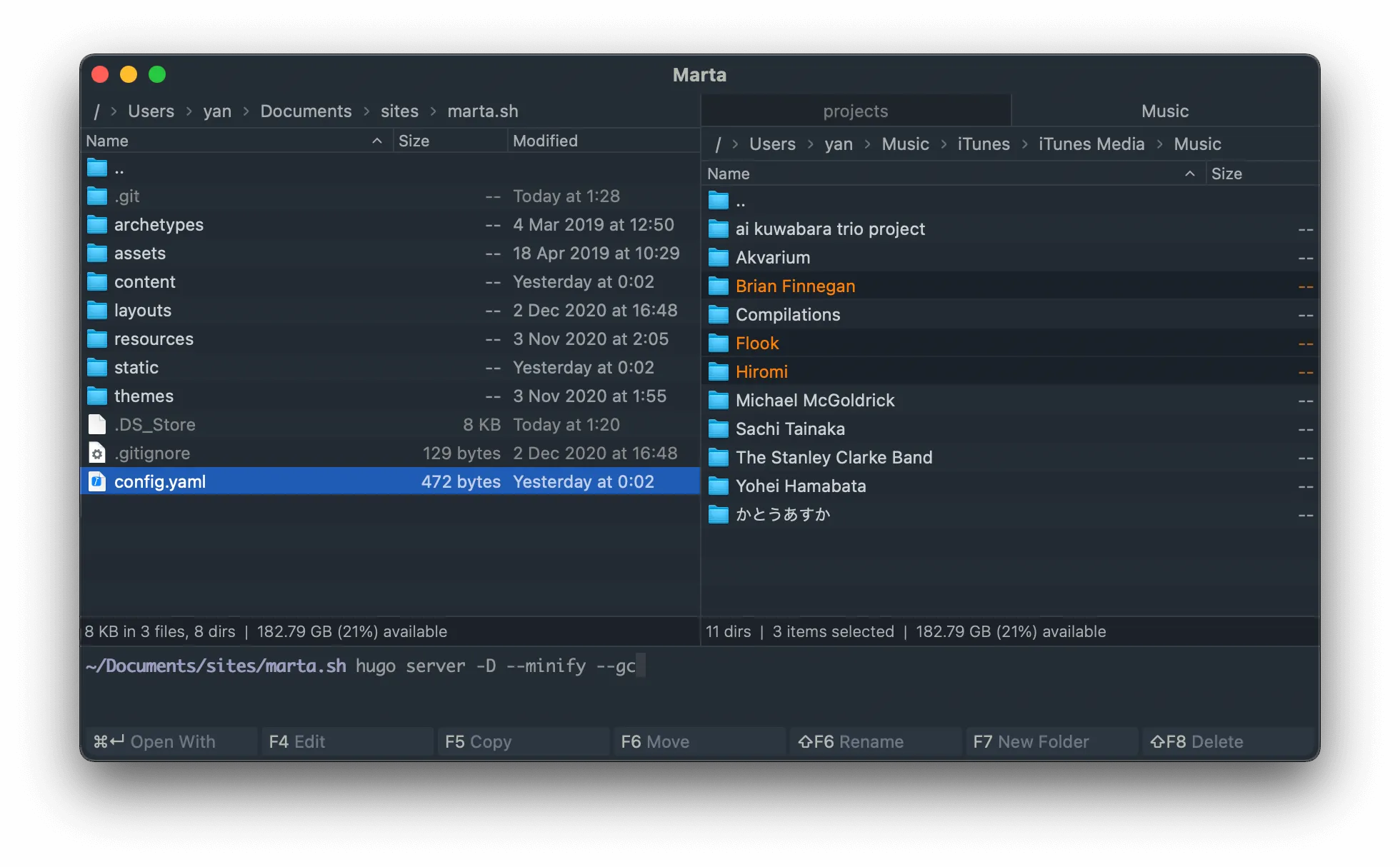
Best for: Power users and developers who prefer the keyboard over the mouse
Price: Free
Marta is a free, native file manager built in Swift. It’s incredibly fast and designed entirely around keyboard navigation. If you’re the type of person who lives in the terminal and wants a file manager that keeps up, Marta is your app.
Why we recommend it
- Completely free. No paid tier, no feature limits, no ads
- Blazing fast. Built natively in Swift, it opens and navigates instantly even with huge directories
- Keyboard-first. Every action has a keyboard shortcut. You can navigate your entire file system without touching the mouse
Key features
- Dual-pane interface: Two panels side by side, each with independent navigation
- Action system: Trigger any action via a quick-open palette (like VS Code’s Command Palette)
- Plugin support: Extend functionality with Lua plugins
- Archive browsing: Open ZIP, TAR, GZ, and other archives as regular folders
- Themes: Customize colors and fonts. Several built-in themes available
- Configuration file: All settings live in a plain-text config file with no GUI settings menus
- Fast directory listing: Handles directories with thousands of files without lag
Best for
Developers and terminal power users who want a fast, keyboard-centric dual pane file manager for Mac that stays out of the way.
Potential drawbacks
- No graphical settings UI. All configuration is done via a text file
- Steeper learning curve for users who prefer mouse-driven interfaces
- No built-in cloud or remote connections
- Limited documentation compared to commercial alternatives
Verdict: Marta is the best free keyboard-driven file manager on macOS. If speed and keyboard control matter more than polish, Marta delivers.
Website: marta.sh
Mac Finder alternatives compared
| Feature | QSpace Pro | Bloom | ForkLift 4 | Commander One | Marta | FileMinutes |
|---|
| Price | $13.99 | $16 | $19.95 | Free / $29.99 | Free | Free / Paid |
| Dual/Multi-Pane | 12 layout presets | Multi-pane | Dual pane | Dual pane | Dual pane | N/A (search tool) |
| Remote/FTP | FTP, SFTP, WebDAV | No | SFTP, FTP, S3, WebDAV | Google Drive, S3 (Pro) | No | No |
| Free Version | No | Trial only | Trial only | Yes | Yes (fully free) | Yes |
| Built-in Terminal | No | No | No | Yes (Pro) | No | No |
| Batch Rename | Yes | Yes | Yes | Yes | No | No |
| Best For | Multi-project power users | Modern Finder upgrade | Remote file transfers | Free dual-pane browsing | Keyboard power users | Fast file search |
How to choose the right Finder alternative
Not sure which app to pick? Here’s a quick guide based on your workflow:
You manage multiple projects at once? Go with QSpace Pro. Its multi-pane layouts and workspace system are unmatched.
You want Finder but better? Choose Bloom. It keeps the macOS look and feel while adding the features Finder is missing.
You work with remote servers? Pick ForkLift 4. Its SFTP/FTP support and folder sync make remote file management painless.
You want something free and capable? Start with Commander One. The free tier gives you dual panes and a terminal.
You’re a keyboard-first power user? Try Marta. It’s free, fast, and built for people who hate touching the mouse.
You just need better search? Get FileMinutes. It works alongside any file manager and finds files in seconds.
Frequently asked questions
Can you fully replace Finder on Mac?
Not entirely. macOS requires Finder to run in the background for core system functions like mounting drives and managing the desktop. But you can set some file managers (like ForkLift) as your default file browser, so they open instead of Finder when you click folders. For daily file management, a third-party app can handle nearly everything.
What is the best free Finder alternative for Mac?
Commander One is the best free option with a full feature set (dual panes, terminal, tabs). Marta is also completely free and better suited for keyboard-driven workflows. Both are solid choices depending on your preference.
Does Mac have a file manager like Windows Explorer?
Finder is Apple’s equivalent of Windows Explorer, but it’s more limited. It lacks features like dual-pane view, built-in terminal, and tabbed browsing across panes that Explorer (and third-party Mac file managers) offer. The apps in this list bring those capabilities to macOS.
Wrapping up
Finder gets the basics done, but it hasn’t evolved to match how people work today. Whether you need multi-pane layouts, remote server access, or just faster file search, there’s a tool on this list that fits.
Try the free options first. Marta and Commander One cost nothing. If you find yourself needing more, QSpace Pro, Bloom, and ForkLift are all one-time purchases with no subscriptions.
And if your real problem is just finding files, give FileMinutes a try. It works alongside any file manager and helps you get to the right file in seconds.