You just downloaded a video file, double-clicked it, and… QuickTime refuses to play it. Sound familiar? Or maybe you’re watching a 4K movie and it’s stuttering like a slideshow. Perhaps you want to stream that video to your TV but can’t figure out how.
If you’ve ever faced these frustrations on your Mac, you’re not alone. QuickTime Player might come pre-installed, but it’s woefully inadequate for modern video playback needs. The good news? There are several excellent video players that blow QuickTime out of the water.
I’ve spent weeks testing the top video players for macOS, throwing everything at them from obscure codecs to 8K HDR content. In this guide, I’ll walk you through the six best options, what makes each one special, and help you find the perfect player for your needs.
Before diving into the players, here’s what I evaluated:
Format support: Can it play MKV, AVI, WebM, and modern codecs like HEVC, AV1, and VP9 without installing extra software?
Performance: Does 4K and HDR content play smoothly, or does your Mac sound like it’s about to take off?
macOS integration: Does it feel native, or like a Windows app awkwardly ported over?
Streaming capabilities: Can you easily cast videos to your TV or other devices?
User experience: Is it intuitive, or do you need a PhD to adjust subtitles?
Now, let’s get to the players.

Best for: Mac users who want smooth playback, broad format support, and easy streaming to TV
Price: Free | Pro: $19.99 one-time
Elmedia Player is a Mac-focused video player built for people who don’t want to think about file compatibility every time they open a video. MKV, AVI, MP4, MOV, FLV, WMV, WebM, and many other formats work without extra codecs, conversion, or the usual “unsupported file” frustration. For everyday viewing, that makes it feel less like a backup player and more like the one you can actually set as your default.
What makes Elmedia special:
Format support is the first thing you notice. Elmedia handles common and high-quality video files smoothly, including 4K and 8K content, with hardware acceleration helping playback stay stable even on larger files. Subtitles are also well covered, with options to load, sync, and customize them without digging through complicated menus.
The interface is clean and Mac-like, with simple controls for playback speed, audio tracks, subtitles, brightness, contrast, and other adjustments. It gives you more control than QuickTime without feeling as technical or overloaded as VLC.
Streaming is the major bonus. When you want to watch on a bigger screen, Elmedia can send videos to Apple TV, Chromecast, Smart TVs, and DLNA-compatible devices. So it works not only as a strong local video player, but also as an easy way to move playback from your Mac to your TV when needed.
Where Elmedia falls short:
Some of Elmedia’s advanced features are reserved for the Pro version, including unlimited streaming. The free version is still useful as a local video player, especially if you mainly need reliable playback for MKV, AVI, MP4, MOV, and other common formats, but users who want full TV casting support will need the $19.99 Pro upgrade.
It’s also less open-ended than VLC when it comes to deep customization. If you like adjusting every technical setting or working with very unusual file types, VLC may still offer more control. Elmedia is better suited to users who want a polished Mac player that works smoothly without much setup.
The verdict: Elmedia Player is a strong choice if you want one Mac video player for everyday playback, broad format support, subtitles, high-resolution video, and optional streaming to Apple TV, Chromecast, Smart TVs, or DLNA devices. The free version covers the core playback experience well, while the Pro version makes sense if you also want unrestricted streaming and the full feature set.
Download: https://www.elmedia-video-player.com/
Best for: Mac users who want a beautiful, native experience without sacrificing power
Price: Free (open-source)
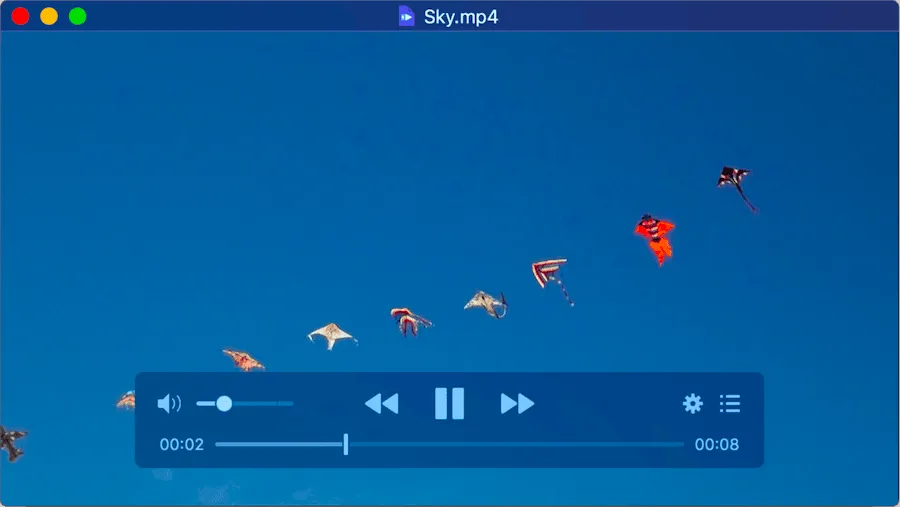
If someone designed a video player specifically for Mac users in 2026, it would be IINA. Built from the ground up with Swift, it looks and feels like a true macOS app. You get Dark Mode support, Touch Bar controls, trackpad gestures, and even Picture-in-Picture mode. It’s what QuickTime should have been.
Under the hood, IINA uses the powerful mpv engine, meaning it can handle virtually any video format you throw at it. But unlike mpv (which is command-line based), IINA wraps all that power in an interface that’s actually pleasant to use.
What makes IINA special:
The interface deserves special mention. Instead of cluttering your screen with controls, IINA puts a semi-transparent control bar right on the video itself. When you’re not using it, it fades away, giving you maximum screen real estate. Hover over the timeline, and you get thumbnail previews, just like YouTube.
Subtitle support is excellent too. IINA can automatically search online subtitle databases and download the right subtitles for your video in seconds. You can adjust timing, size, position, and styling without digging through menus.
The plugin system is a nice touch for power users. Want custom functionality? Write a JavaScript plugin. The community has already created plugins for everything from YouTube downloads to advanced subtitle manipulation.
Where IINA falls short:
IINA has limited DVD and ISO support. While mpv (its underlying engine) can play some DVD files, it doesn’t support DVD menus like VLC does. It also has some limitations with HDR content compared to specialized players like Movist Pro. And while it’s customizable, VLC still offers more tweaking options for advanced users.
The verdict: For 95% of Mac users, IINA is the best choice. It’s free, beautiful, powerful, and feels right at home on macOS. Start here.
Download: https://iina.io/
Best for: People who need to play absolutely anything, no matter how obscure
Price: Free (open-source)
VLC is the Swiss Army knife of video players. The VideoLAN project started in 1996, with the first public release in 2001, making it over 20 years old. There’s a reason it’s installed on hundreds of millions of computers worldwide: it just works.
Got a weird video format from 1998? VLC plays it. Need to convert a file? VLC does that. Want to stream from a network drive or play a scratched DVD? VLC handles it. It’s the player you install when everything else fails.
What makes VLC special:
The format support is unmatched. VLC includes every codec imaginable built-in, so you never need to hunt down codec packs or conversion software. MKV, AVI, FLAC, WebM, HEVC, AV1, VP9 — VLC plays them all without breaking a sweat.
Beyond playback, VLC offers features most people don’t even know exist. You can:
For tech enthusiasts, VLC is endlessly customizable. You can tweak hardware acceleration, adjust audio/video sync, set up advanced playlists, and configure dozens of playback parameters.
Where VLC falls short:
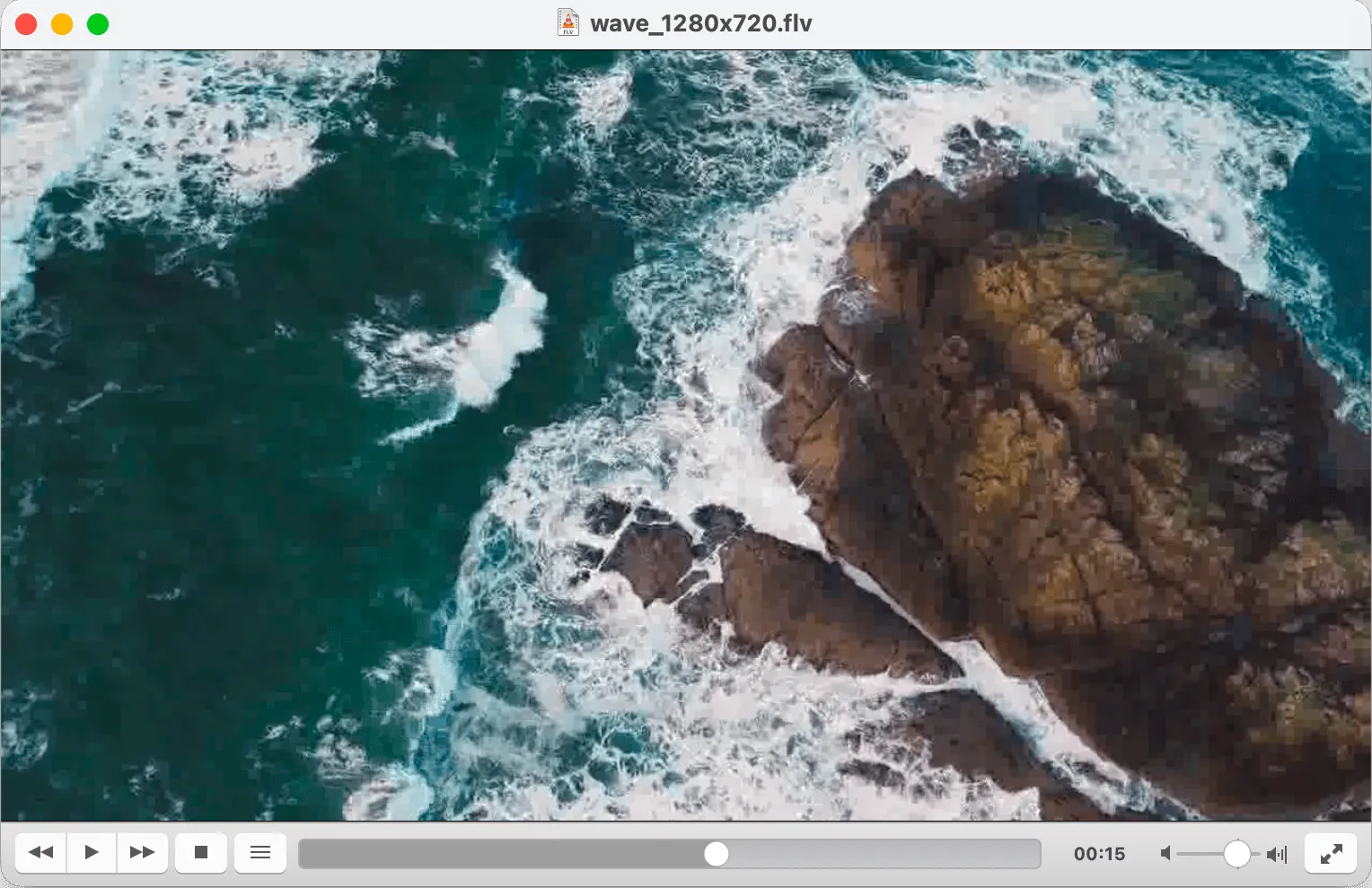
Let’s be honest: VLC looks dated. The interface hasn’t evolved much in years, and it definitely doesn’t feel like a native Mac app. The preferences window is overwhelming, with hundreds of options scattered across multiple tabs.
Performance can be inconsistent too. Some users report 4K videos stuttering or lagging, especially on older Macs. Settings persistence can also be problematic — some users experience issues with VLC not saving preferences (like equalizer settings or window size) between sessions, though this varies.
VLC 4.0 added AirPlay support through the Renderer menu, but it’s not as seamless as native macOS AirPlay. Prior versions only support screen mirroring.
The verdict: VLC isn’t pretty, but it’s incredibly reliable. Keep it installed as your “fallback player” for those rare files that nothing else can open. Or if you’re a power user who values features over aesthetics, make it your default.
Download: https://www.videolan.org/vlc/
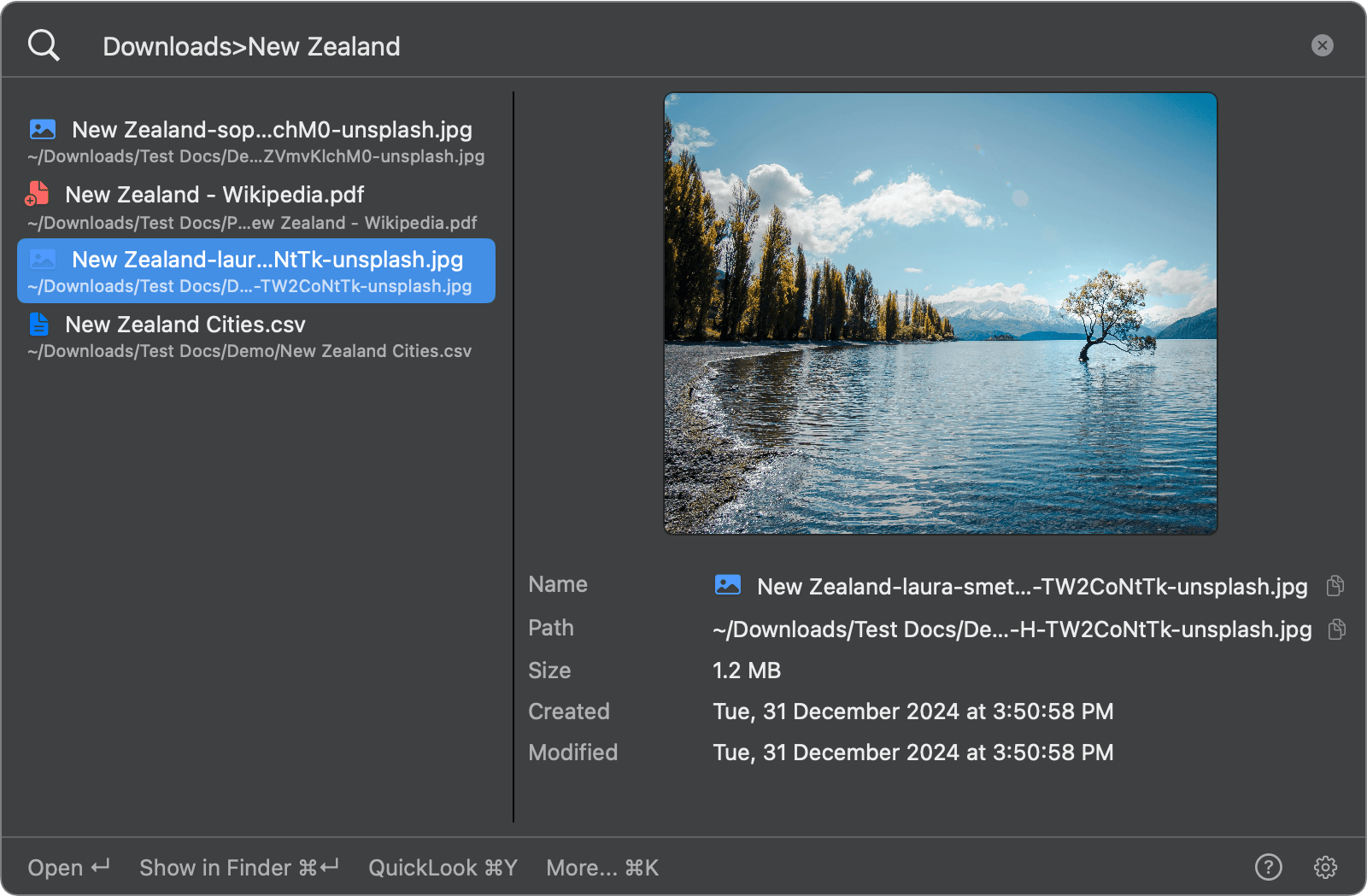
Got videos scattered across folders and external drives? FileMinutes lets you search for MKV, MP4, and other video files across your Mac instantly. Filter by file type, search inside specific folders, and browse results with arrow keys.
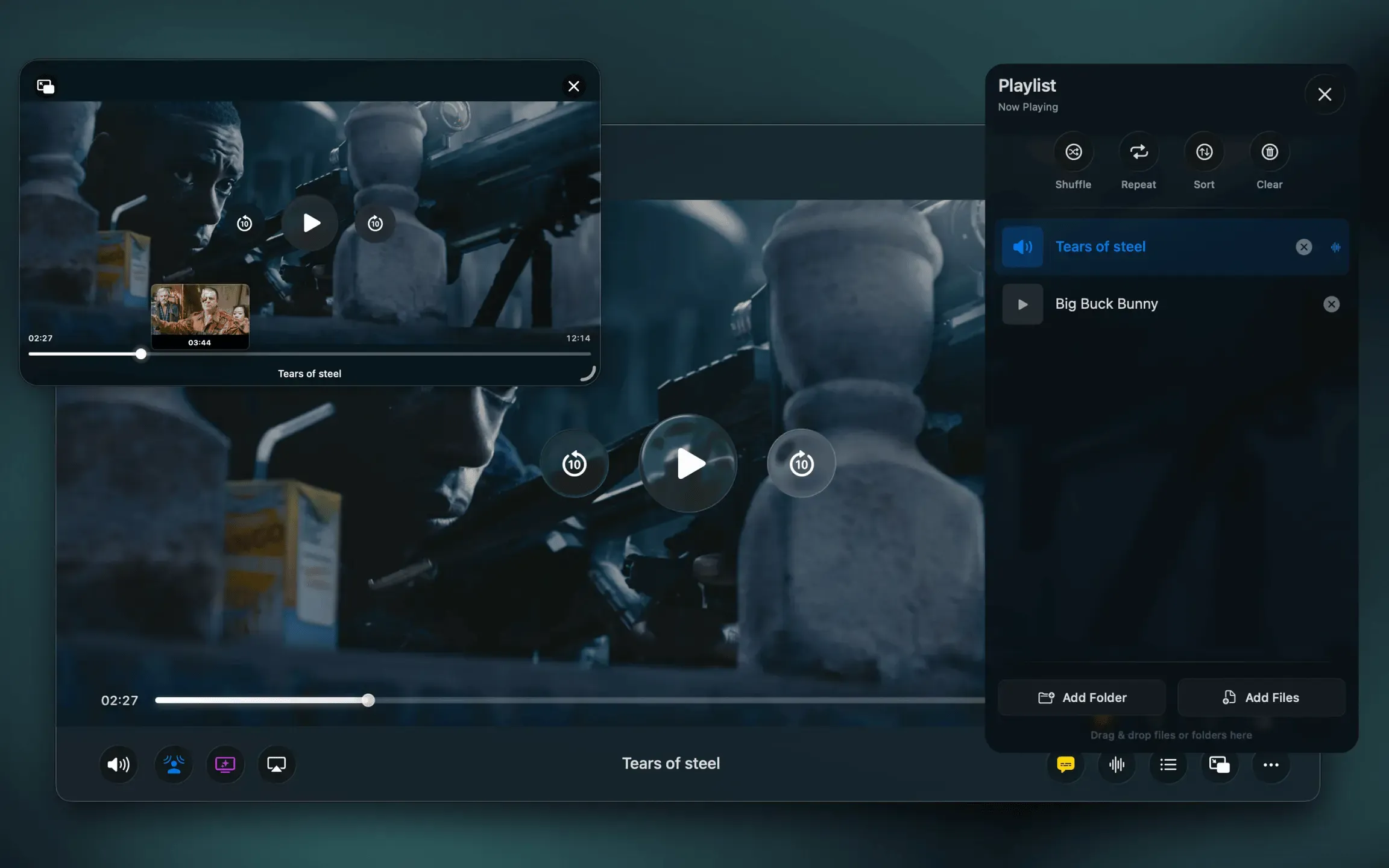
Best for: Users who want a truly Mac-native video player with modern design, deep system integration, and an uncluttered experience
Price: Free (with limitations) | Pro: $19.99 one-time
Vidi is a modern macOS video player built from the ground up specifically for macOS. Rather than wrapping a cross‑platform engine, it’s designed around Apple’s native frameworks, so it looks, feels, and behaves like a first‑class Mac app. Vidi supports all major video formats while focusing on a clean interface, thoughtful system integration, and features that feel at home on macOS, such as a custom native Picture‑in‑Picture experience, and immersive audio/visual touches like Ambient Mode and Spatial Audio. It’s a promising newcomer for Mac users who value native design and polish over legacy complexity.
What makes Vidi special:
The Picture-in-Picture implementation is outstanding. Unlike standard implementations, Vidi’s floating window includes full timeline scrubbing with hover-preview thumbnails, seeking controls, and playback options without minimizing the main player.
The audio features are where Vidi really shines. Spatial Audio creates an immersive 3D soundstage on any headphones, particularly effective with surround sound content. You also get Cinema Effect for theatrical punch, Voice Boost for dialogue clarity, a 7-band EQ, and Volume Boost up to 400%.
Visual features like Ambient Mode extend your video’s colors beyond the window using real-time analysis. Smart Resume remembers playback positions, intro/outro skipping works via chapter metadata, and subtitle support is comprehensive with OpenSubtitles integration.
Performance is excellent too. By using Apple’s native rendering pipeline, Vidi delivers superior HDR handling and exceptional battery efficiency on Apple Silicon Macs.
Where Vidi falls short:
As a newer player, Vidi’s community and plugin ecosystem are still developing compared to IINA and VLC. Some advanced features require the Pro subscription, though the core player remains free.
While it handles common formats excellently, VLC still wins for truly obscure legacy codecs.
The verdict: If you want a player that feels truly native to macOS with exceptional audio features and excellent performance on Apple Silicon, Vidi is an outstanding choice. It’s what a modern Mac video player should be.
Download: https://www.vidiplayer.com/
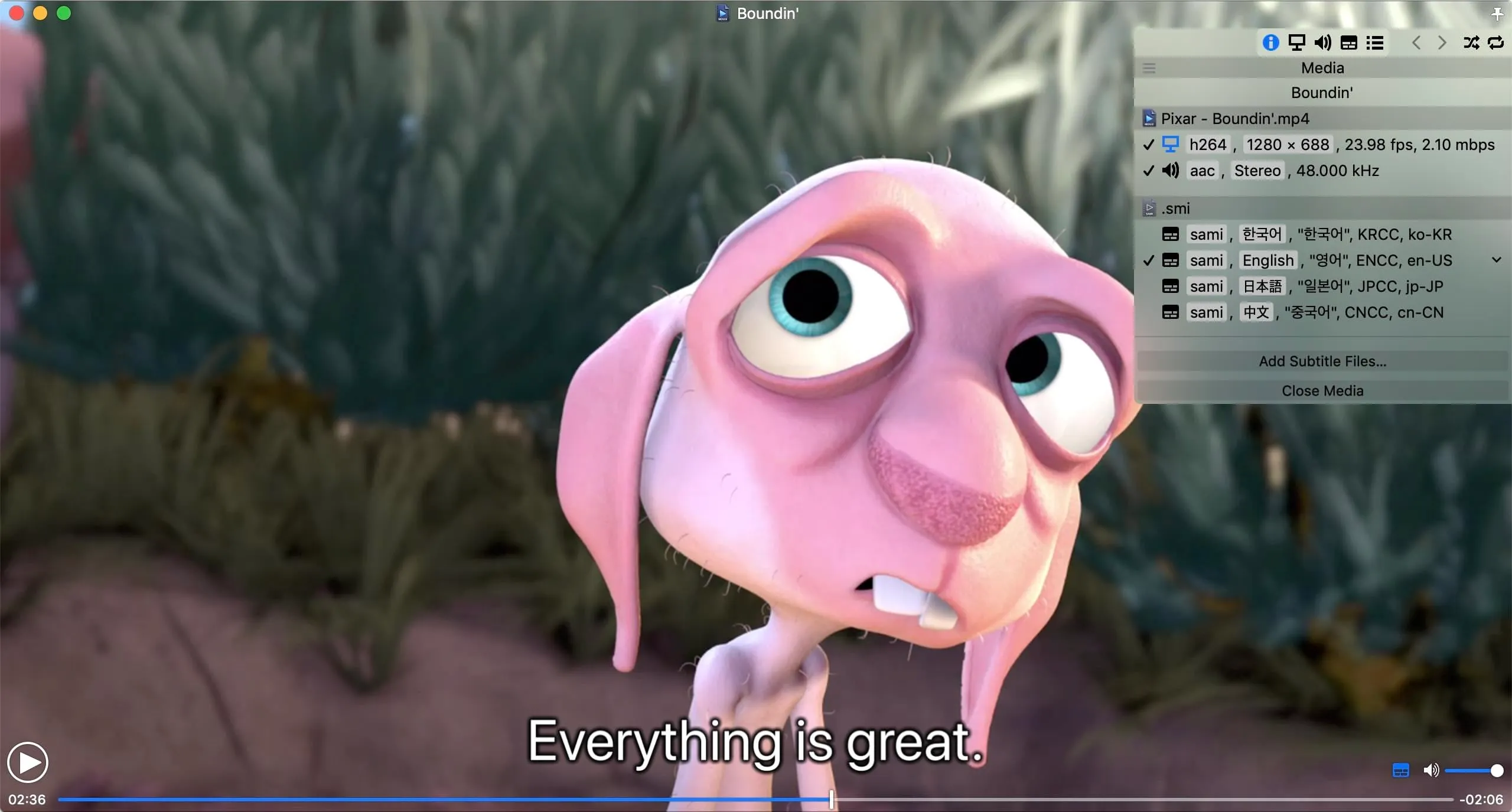
Best for: Users with HDR displays who want the absolute best picture quality
Price: $7.99 (Mac App Store) | Also available on Setapp
Movist Pro has been the gold standard for Mac video playback for over a decade. If you care deeply about picture quality, color accuracy, and HDR playback, this is the player professionals choose.
What makes Movist special:
The HDR support is the best you’ll find on macOS. Movist Pro properly handles both HDR10 and Dolby Vision content, and the colors, contrast, and brightness are simply stunning on compatible displays.
Even if you don’t have an HDR display, Movist Pro’s tone mapping technology automatically adjusts HDR content to look great on regular screens. I compared the same HDR video in IINA, VLC, and Movist Pro, and Movist’s rendering was noticeably superior in terms of detail preservation and color accuracy.
The hardware-accelerated HEVC/H.265 decoding is optimized specifically for macOS, resulting in smooth 4K playback even on less powerful Macs. Battery life during video playback is also excellent thanks to efficient hardware utilization.
Where Movist falls short:
Movist Pro is paid software with no free version, and it’s more expensive than alternatives like Elmedia. At its core, it’s focused on playback quality rather than features, so you won’t find the extensive toolset that VLC offers.
For general everyday use, the quality difference might not justify the cost unless you’re watching a lot of high-quality content on a good display.
The verdict: If you’ve invested in a nice MacBook Pro with an HDR display or have an external HDR monitor, Movist Pro is absolutely worth it. For everyone else, the free options will serve you well.
Download: https://movistprime.com/
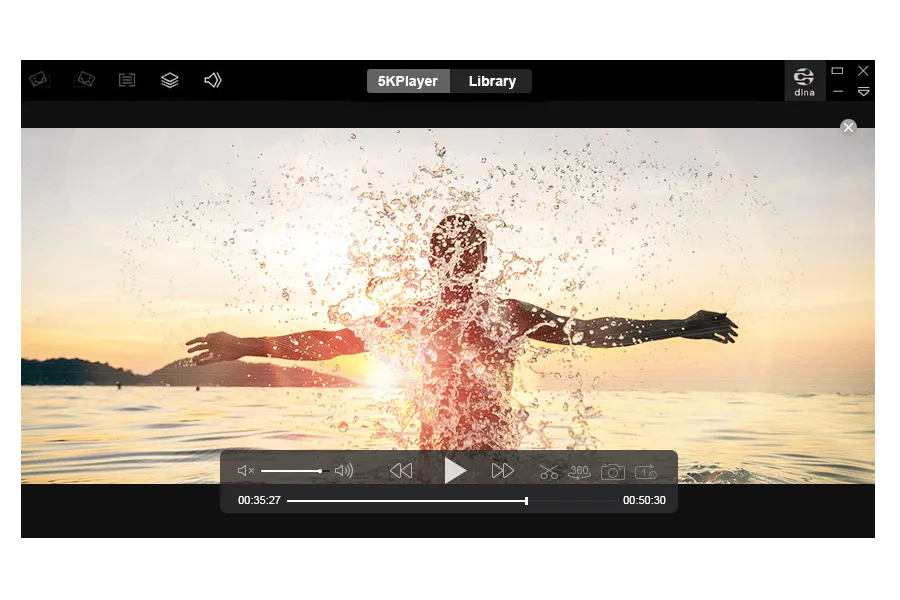
Best for: Users who want a free player that also downloads videos and streams to devices
Price: Free
5KPlayer tries to be everything: a video player, a YouTube downloader, an AirPlay receiver, and even a radio player. Surprisingly, it does most of these things quite well, all while remaining free and ad-free.
What makes 5KPlayer special:
The built-in video downloader is incredibly convenient. Paste a YouTube, Vimeo, or Dailymotion URL, and 5KPlayer downloads it in your preferred quality. No need for sketchy browser extensions or separate software.
It supports an impressive range of formats and resolutions, including 4K, 5K, 8K, HDR, AV1, VP9, and even VR 360° videos. The AirPlay and DLNA support means you can stream content to TVs and speakers easily.
There’s even a satellite radio feature with access to stations like BBC Radio, ABC, and WNYC. It’s a random addition, but if you listen to radio, it’s a nice bonus.
Where 5KPlayer falls short:
The email registration requirement is annoying and raises privacy questions. Why does a video player need your email?
Performance can be choppy when fast-forwarding or rewinding, especially on macOS. It’s also not as polished or native-feeling as IINA — the interface works, but it doesn’t feel particularly Mac-like.
Compared to VLC’s customization or IINA’s elegance, 5KPlayer feels more utilitarian. It gets the job done but won’t win any design awards.
The verdict: If you want a free all-in-one solution and don’t mind the email registration, 5KPlayer is solid. But if you only need video playback, IINA is a better experience.
Download: https://www.5kplayer.com/
Here’s how these players stack up side-by-side:
| Feature | Elmedia | IINA | VLC | Vidi | Movist Pro | 5KPlayer |
|---|---|---|---|---|---|---|
| Price | Free/$19.99(Pro) | Free | Free | Free/$19.99(Pro) | Paid | Free |
| macOS native feel | Good | Excellent | Poor | Excellent | Excellent | Fair |
| Format support | Excellent | Excellent | Best | Excellent | Very good | Excellent |
| 4K/HDR performance | Excellent | Very good | Good | Excellent | Best | Very good |
| Streaming to TV | AirPlay/Chromecast/DLNA | No | Chromecast/AirPlay (v4.0) | AirPlay/Chromecast/DLNA | No | AirPlay/DLNA |
| Subtitle support | Excellent | Excellent | Very good | Excellent | Good | Good |
| DVD playback | No | Limited | Yes | No | No | No |
| Video downloading | No | Via plugins | No | No | No | Built-in |
| Customization | Fair | Good | Excellent | Fair | Fair | Fair |
| Picture-in-Picture | Yes | Yes | No | Yes | No | Yes |
| Best for | Streamers | Most users | Power users | Native Mac experience | Videophiles | All-in-one |
Choose Elmedia Player if: You want one Mac player that handles MKV, AVI, MP4, MOV, and other formats smoothly, plus streams to Apple TV, Chromecast, Smart TVs, or DLNA devices. The free version covers everyday playback; the $19.99 Pro is worth it for unrestricted streaming.
Choose IINA if: You want the best free overall experience on Mac. It’s beautiful, powerful, and handles 99% of use cases perfectly.
Choose VLC if: You need to play obscure formats, want maximum customization, or need features like conversion and DVD playback.
Choose Vidi if: You want a truly native Mac player with exceptional audio features like Spatial Audio and an advanced Picture-in-Picture experience. Built on Apple’s frameworks rather than cross-platform engines, it’s perfect for users who value native design and deep macOS integration.
Choose Movist Pro if: You have an HDR display and care deeply about picture quality. It’s the best at what it does.
Choose 5KPlayer if: You want a free all-in-one tool that includes downloading, streaming, and playback in one package.
QuickTime Player ships with every Mac, but honestly, it’s time to move on. It only supports MOV, MP4, and M4V files, chokes on formats like MKV and AVI, and offers almost no customization. Apple discontinued QuickTime Pro years ago, so it’s not getting better.
QuickTime is fine for screen recording and basic trimming, but for actual video playback, any of the six players above is vastly superior.
Will these players slow down my Mac?
No. All six use hardware acceleration, which means your Mac’s GPU does the heavy lifting. IINA, Vidi, and Movist Pro are particularly optimized for macOS and use minimal resources.
Are they safe?
Yes, when downloaded from official websites. IINA and VLC are open-source, so their code is public and verified by thousands of developers. Always download from the official links provided in this article.
Do they work on Apple Silicon Macs?
Absolutely. All six players are fully compatible with M1, M2, M3, and M4 Macs and take advantage of Apple Silicon’s performance.
Can I set one as my default player?
Yes. Right-click any video file, choose “Get Info,” select your preferred player under “Open with,” then click “Change All.”
Which one plays the most formats?
VLC technically supports the most formats, including ancient and obscure codecs. But Elmedia and IINA handle all modern formats (MKV, HEVC, AV1, VP9, etc.) equally well.
Can I play DVDs or Blu-rays on Mac with these players?
VLC Media Player can play DVDs directly with full menu support. IINA has limited DVD support through mpv but cannot navigate DVD menus like VLC. For Blu-rays, you’ll need additional decryption libraries in VLC. Most modern Macs don’t include optical drives, so you’ll need an external drive.
Which player has the best subtitle support?
Elmedia, IINA, and Vidi all offer excellent subtitle support with automatic online search and extensive customization. VLC also provides strong subtitle features including timing adjustments and style customization.
Which player uses the least system resources?
IINA is highly optimized for macOS and uses minimal resources while delivering excellent performance. Vidi’s native architecture provides exceptional battery efficiency on Apple Silicon Macs. Elmedia Player is also efficient with hardware acceleration. Movist Pro is optimized for battery life during playback. VLC is generally lightweight but can use more CPU with certain codecs or filters.
You don’t have to settle for QuickTime’s limitations. Whether you choose Elmedia’s all-round playback and streaming, IINA’s elegance, VLC’s power, Vidi’s native Mac experience, Movist’s quality, or 5KPlayer’s versatility, you’ll have a dramatically better video watching experience on your Mac.
My recommendation for most people? Start with Elmedia Player. It handles the formats you actually use, streams to your TV when you want a bigger screen, and the free version covers everyday playback well. Keep VLC installed as a backup for those rare occasions when you encounter an unusual file. If you want a beautiful free open-source option, IINA is excellent. And if you want the most Mac-native experience with exceptional audio features like Spatial Audio, give Vidi a try.
The best part? These are all actively maintained and updated for the latest macOS versions, so whichever you choose, you’re in good hands.
Happy watching!