If you’ve ever searched for “search by file type mac” and still couldn’t find the right file, this guide is for you. We’ll cover reliable, current methods for Finder, Spotlight, Smart Folders, and Terminal, plus a faster keyboard-first workflow.
Command+F, then add Kind or File extension filters.Command+Space and type queries like kind:pdf report.mdfind for metadata search or find for extension/path search..pdf, .image, .document) with folder-scoped queries.If you only need built-in macOS tools, use this order:
Kind, File extension, date, tags).kind:pdf invoice).Finder’s search supports both “Kind” and “File extension” filters. “Kind” is broader (e.g., Images include PNG, JPG, HEIC), while “File extension” targets .pdf, .txt, .zip, etc.
Steps (macOS 12+):
Command+F to enter search mode.+ button to add a filter.Kind or Other….
File extension and set is to pdf (or txt, csv, zip).+ button for more filters (Name contains, Created date, Tags, etc.).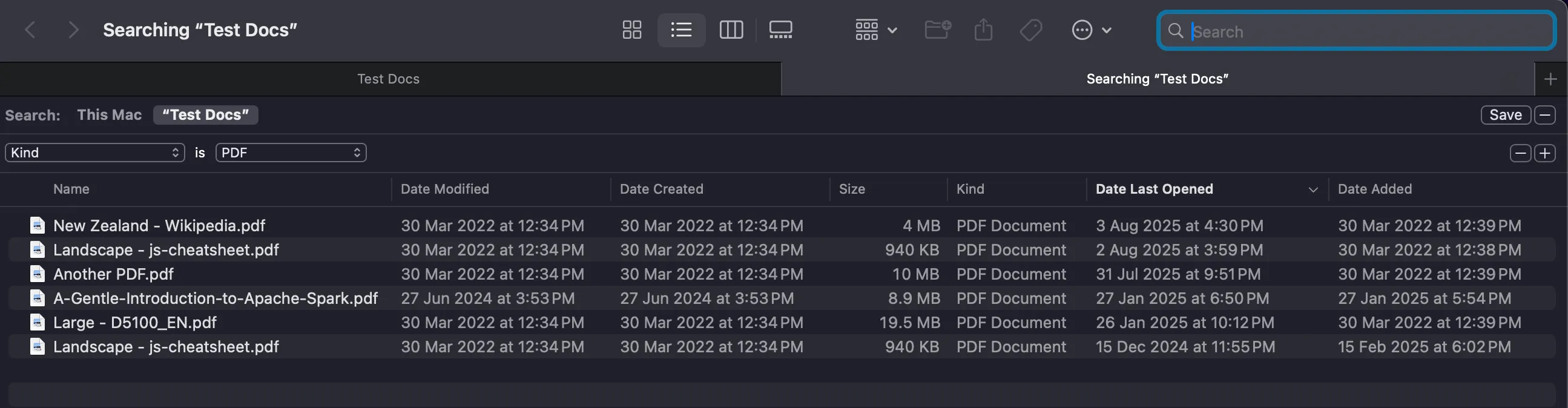

Pro tips:
Command+Shift+. if needed.System files attribute via Other… and set it to are included.Name contains for quick targeting; for precise extension matches, prefer File extension is ….Use this when you need exact formats like .csv, .md, or .heic:
Command+F.This Mac or current folder).+, choose Other…, and add File extension.File extension is and enter values like pdf, docx, xlsx, png.Any criteria group and add each extension line.Spotlight is fast for quick, typed queries anywhere on your Mac.
How to use:
Command+Space to open Spotlight.kind: operator:
kind:pdfkind:imagekind:folderkind:video 2024.
Useful kinds:
kind:pdf, kind:image, kind:folder, kind:document, kind:music, kind:movieYou can still search by filename:
kind:pdf "tax return"Smart Folders let you create saved searches, great for “all PDFs from last 30 days” or “all images in Downloads.”
Create a Smart Folder:
Command+F.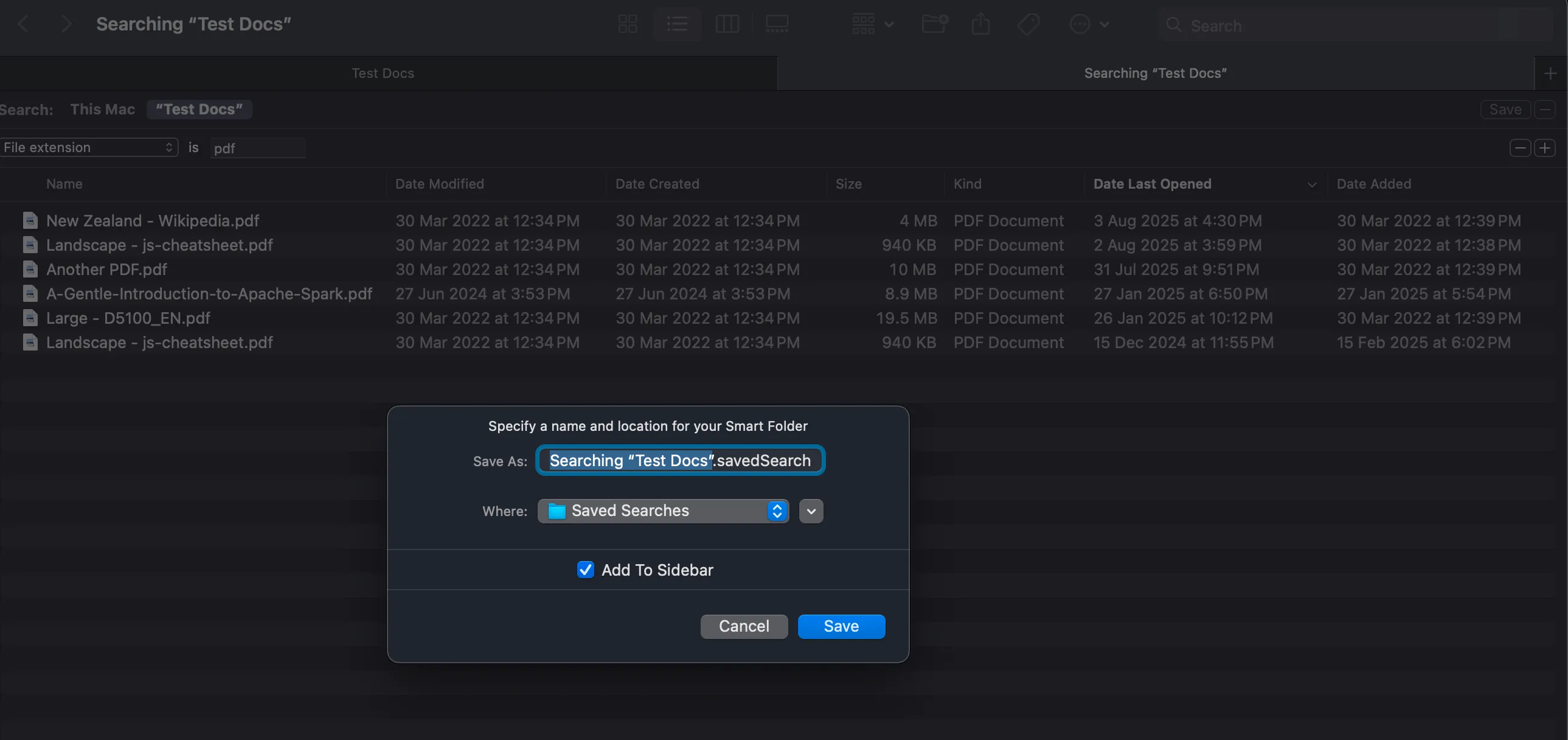
Example ideas:
If you prefer the command line or need advanced precision, two tools are essential.
A) find (search by name/extension on the filesystem)
# Find PDFs in Downloadsfind ~/Downloads -type f -iname "*.pdf"
# Find multiple extensionsfind ~/Projects -type f \( -iname "*.docx" -o -iname "*.pdf" \)
# Only folders named "assets"find ~ -type d -iname "assets"
B) mdfind (uses Spotlight metadata; great for “kind”/UTI)
# All images (any common format)mdfind "kMDItemContentTypeTree == 'public.image'"
# PDFs system-widemdfind "kMDItemContentType == 'com.adobe.pdf'"
# PDFs within a specific foldermdfind -onlyin ~/Documents "kMDItemContentType == 'com.adobe.pdf'"
# Videos (movies) by UTI treemdfind "kMDItemContentTypeTree == 'public.movie'"
Tips:
mdfind returns little or nothing, Spotlight may need indexing.mdls /path/to/file to inspect a file’s metadata and see its content type (UTI).If you regularly search for file types across multiple folders, FileMinutes offers a quicker, keyboard-first experience.
What makes it faster:
.pdf, .txt, .csv) or file categories:
. - folders only.image - JPG, PNG, HEIC, etc..document - PDF, DOCX, XLSX, etc..video - MP4, MOV, etc..audio - MP3, WAV, etc..text - TXT, MD, etc..archive - ZIP, RAR, etc.How file type search works in FileMinutes:
# Filter by extensionsreport .pdf .xlsx       # finds PDF or Excel files with “report” in the name
# Show only folders. report                # shows only folders with “report” in the name
# Search inside a folder~/Downloads>.image      # shows image files in the Downloads folder
# Combine folder patterns + types2025>invoice .pdf       # PDFs with “invoice” inside folders matching “2025”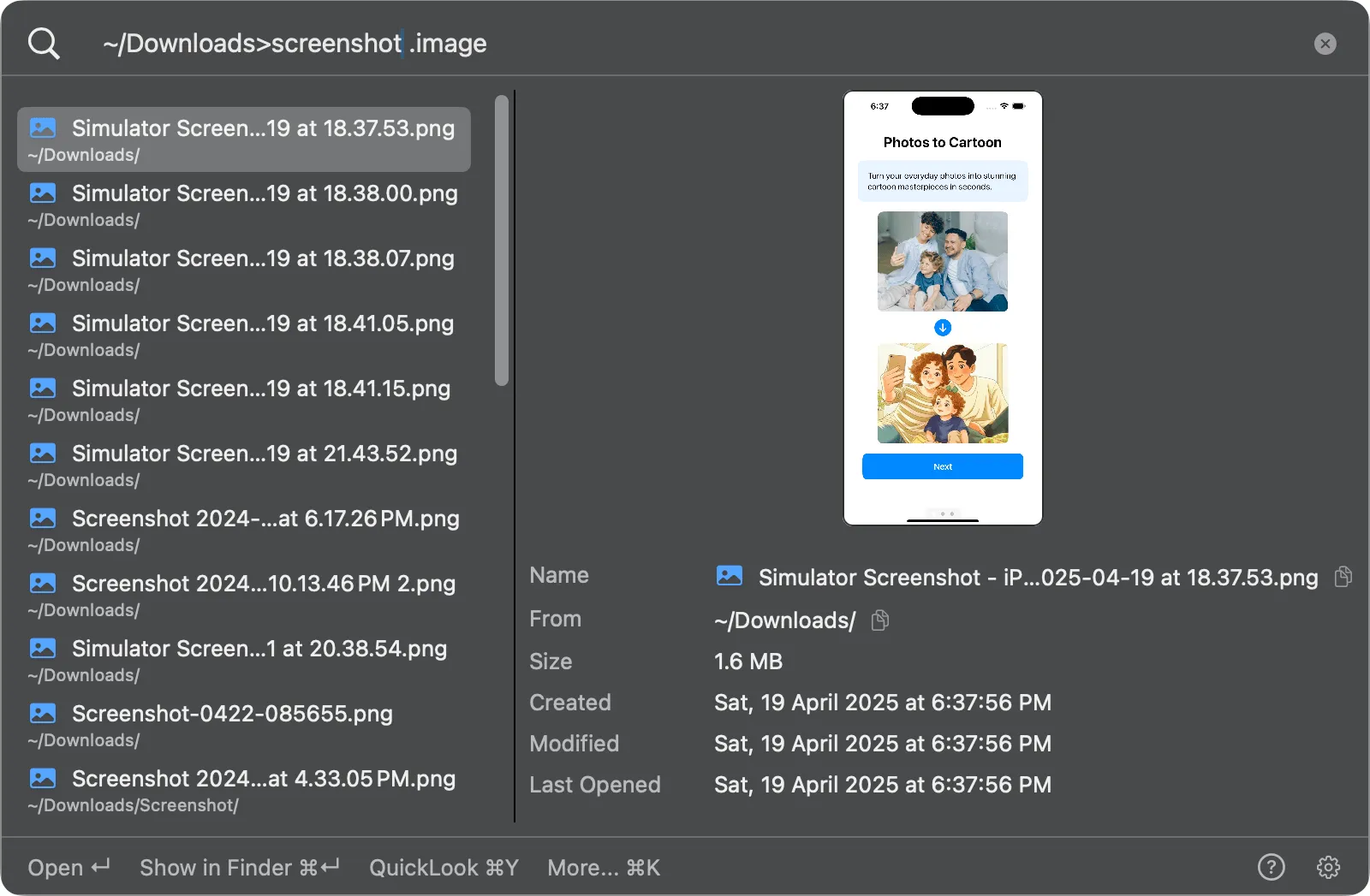
Follow this order so you can isolate the cause quickly:
This Mac vs current folder.Kind is PDF and File extension is pdf can return different results.kind:pdf filename to confirm the file is indexed.Command+Shift+.System files in Finder via Other… and set it to are includedsudo mdutil -E /Q: How do I search by file type on Mac?
A: Use Finder (Command+F) and set Kind (PDF, Image, Video, etc.). For quick typed queries, use Spotlight with kind: such as kind:pdf invoice.
Q: How do I search by file extension on Mac?
A: In Finder search, add File extension is via Other…, then enter values like pdf, docx, csv, or png. For command line, use find ~/Path -iname "*.pdf".
Q: What’s the difference between “Kind” and “File extension” in Finder?
A: “Kind” is a broader category based on the file’s metadata (e.g., Image includes JPG, PNG, HEIC). “File extension” targets the actual suffix (e.g., .jpg). Use “Kind” when you want all images; use “File extension” when you need only .png or .jpg.
Q: How do I search for multiple types at once in Finder?
A: Use grouped criteria. Click the … menu (press Option key which will change + to ...) to create a group that matches “Any” and add multiple lines like “File extension is pdf” or “File extension is docx.” Alternatively, use “Kind is Document” to include many office formats at once.
Q: Can Spotlight search inside the file contents?
A: Yes, Spotlight indexes contents for many file types (PDF, text, some documents). If content searches fail, try reindexing Spotlight and ensure the file type is supported.
Q: How do I find only folders?
A: Finder: Kind is Folder. Spotlight: kind:folder keyword. FileMinutes: use . (dot) to show only folders, e.g., . reports.
Q: Is there a quicker way to preview results?
A: Yes. In Finder or FileMinutes, select a file and press Spacebar to open QuickLook. Use arrow keys to navigate while the preview is open.
Q: What about searching by date?
A: Finder supports “Created date” and “Modified date” filters. Spotlight supports natural ranges like date:today and date:yesterday in some contexts.
For most users, Finder and Spotlight are enough for basic file-type searches. Save recurring searches as Smart Folders, and use find/mdfind when you need precision. If you want a faster keyboard workflow, FileMinutes combines file-type filters, folder-scoped search, and content search in one place.
Next steps: